Google Business Profile Optimisation: A Step-by-Step Guide
 By Codeventure Infotech
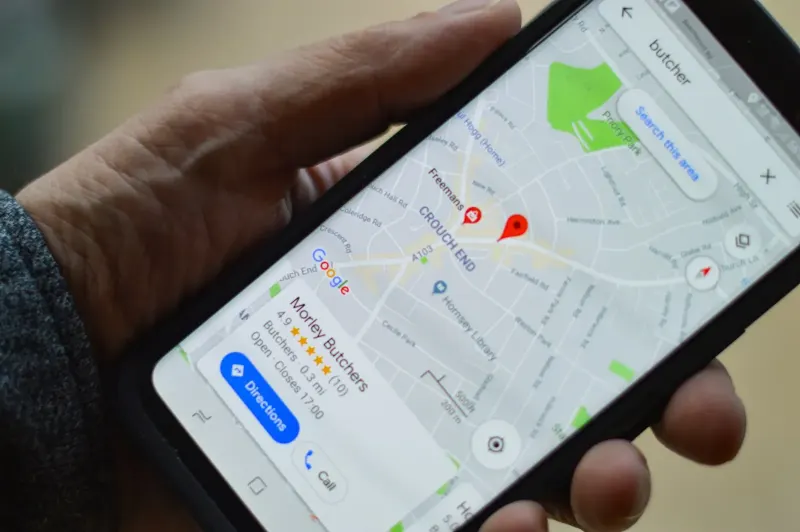
Before customers ever reach your website, many of them see your Google Business Profile: in the map results, in Google Maps or in the panel beside the search results. Getting it right is one of the highest-impact, lowest-cost things any local business can do.
Step 1: Claim and verify your profile
Search for your business on Google or go to Google Business Profile Manager to claim it. Google verifies ownership by video recording, phone, email or postcard, depending on your business type and location. Video verification usually means filming your shop sign, location and proof of business, so have them ready. Businesses without a public shop can hide their address and define a service area instead. Start early, because verification can take time.
Step 2: Get your business details exactly right
Your business name should match your real signage and registered name, not a keyword-stuffed version, which can get your profile suspended. Categories matter more than most owners realise: choose the primary category that most precisely matches your main service, then add secondary categories for anything else you genuinely offer.
Step 3: Match your website and other listings
Your name, address and phone number should match your website, Justdial, IndiaMART, Facebook and every other listing character for character. Small differences, such as “Rd” versus “Road” or an old landline, weaken the trust signal Google uses to rank you.
Step 4: Add real, recent photos
Profiles with genuine, recent photos of your premises, team, products and completed work perform better than those with stock images or none. Any modern phone camera is good enough.
Step 5: Fill in every field
Opening hours, services or products with prices where possible, a written business description, attributes such as wheelchair access or online appointments, your website and WhatsApp link: every blank field is a missed chance to tell Google and customers more about you.
Step 6: Collect and reply to reviews
Ask happy customers straight away. The best response rates come from asking in person or with a quick WhatsApp message containing your review link right after the job, not a generic email weeks later. Reply to every review, positive or negative, politely and professionally.
Step 7: Post updates regularly
The built-in Posts feature works like a short social media update for offers, festival greetings, new products or recent projects. Occasional posts signal that the profile is actively managed.
Keep it current
Update hours for holidays and festivals, add new photos now and then, and correct any detail the moment it changes. A profile that was accurate when set up but then forgotten slowly drifts away from reality.
Want help setting it up properly? Google Business Profile optimisation is part of our local SEO service, and our local SEO guide covers the bigger picture.
Frequently asked questions
How long does Google Business Profile verification take?
It depends on the method Google offers your business. Video, phone or email verification can be quick; postcard verification can take a couple of weeks to arrive.
Can I hide my home address if I run a service-area business?
Yes. Google Business Profile lets service-area businesses define the areas they serve without showing a public address.
Does a Google Business Profile cost anything?
No. Creating and maintaining a profile is free. Google Ads can appear alongside it, but the profile itself costs nothing.